Head tracking
Look around the cockpit by moving your head, with OpenTrack and a webcam or tracker.
FlightOut can follow your head in the cockpit view, using OpenTrack, the free head-tracking program. You can track your face with an ordinary webcam, or use a dedicated tracker. Head tracking is not available in the browser version.
Set it up
- Install and start OpenTrack with your tracker or webcam as its input.
- In OpenTrack, choose the output UDP over network, with host 127.0.0.1 and port 4242.
- Start tracking in OpenTrack.
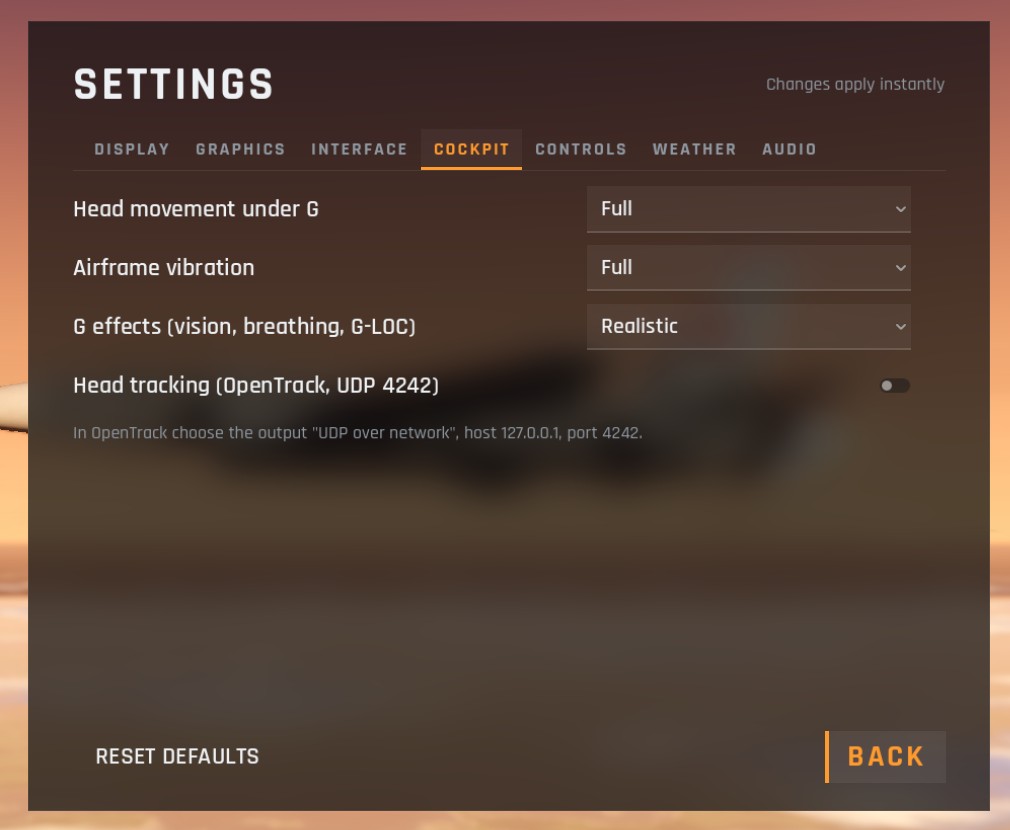
- In FlightOut, open Settings, COCKPIT and switch on Head tracking (OpenTrack, UDP 4242).
What it moves
- Turning: looking left and right, up and down, and tilting your head. This adds to any mouse look.
- Leaning: moving your head about 25 cm to either side or forward, 15 cm back, and about 10 cm up or down, so you can lean around the cockpit to see past things.
If an axis moves the wrong way, invert it in OpenTrack (Options, Output, Post-invert). If OpenTrack stops sending, FlightOut lets go of the view within half a second and you are back to the mouse.
Checking six: when you look far round behind you, FlightOut lifts the view a little by itself, up to 18 degrees when you look straight back. A webcam reads your head tilt poorly once you have turned away from it, and an enemy behind you is usually above.
Head tracking only moves the cockpit view. The outside views are still controlled with the mouse.
Recommended OpenTrack settings for a webcam
A screen covers only a small part of what you can see, so a small head movement should turn the view a long way. These settings were tuned in FlightOut with an ordinary webcam. Start from them and adjust to taste.
| Where in OpenTrack | Setting |
|---|---|
| Input | NeuralNet Tracker: it tracks your face, no markers needed. Click the hammer next to it, choose your webcam, set its Diagonal FOV (78 for a Logitech C920; check your webcam's specifications) and a resolution of 640 × 480 |
| Output | UDP over network, IP 127.0.0.1, port 4242 |
| Filter | Accela, as it comes. It smooths out the jitter |
| Options, Shortcuts | Bind Center to a key you can reach, such as F12. Look straight at the screen and press it whenever the view drifts |
PointTracker and Easy Tracker need a hardware tracker (an infrared LED clip or reflective markers); they don't work with a plain webcam.
Mapping curves
In Mapping, each tab is a curve from how far you move your head (across) to how far the view moves (up). Click on the curve to add a point, drag a point to move it.
Yaw (turning left and right). Set Max input to 60°:
| Head turn | View turn |
|---|---|
| 5° | 4° |
| 15° | 30° |
| 30° | 95° |
| 45° | 160° |
| 55° | 180° |
Pitch (looking up and down). Set Max input to 30° and Max output to 90°, and tick Asymmetric mapping below so up and down have their own curves:
| Head tilt | View up (top curve) | View down (bottom curve) |
|---|---|---|
| 4° | 2° | 2° |
| 7° | 12° | |
| 10° | 22° | |
| 12° | 30° | |
| 16° | 45° | |
| 18° | 50° | |
| 22° | 70° | |
| 24° | 70° | |
| 27° | 88° | |
| 28° | 82° |
The small step near zero keeps the view steady while you look ahead. A 12-degree nod down brings the instrument panel up, and about 45 degrees of head turn shows you the tail. Leave Roll, X, Y and Z as they come.
Checked against FlightOut 0.5.2.