Controls
How FlightOut is controlled, how to change any key, and the mouse and head-tracking options.
FlightOut is flown with the keyboard. The mouse is for looking around, zooming, the map, and clicking the cockpit's switches, buttons and knobs.
Changing a key
Open Settings, CONTROLS. Every action has two key slots, so you can give it two keys (the defaults use this for the arrow keys).
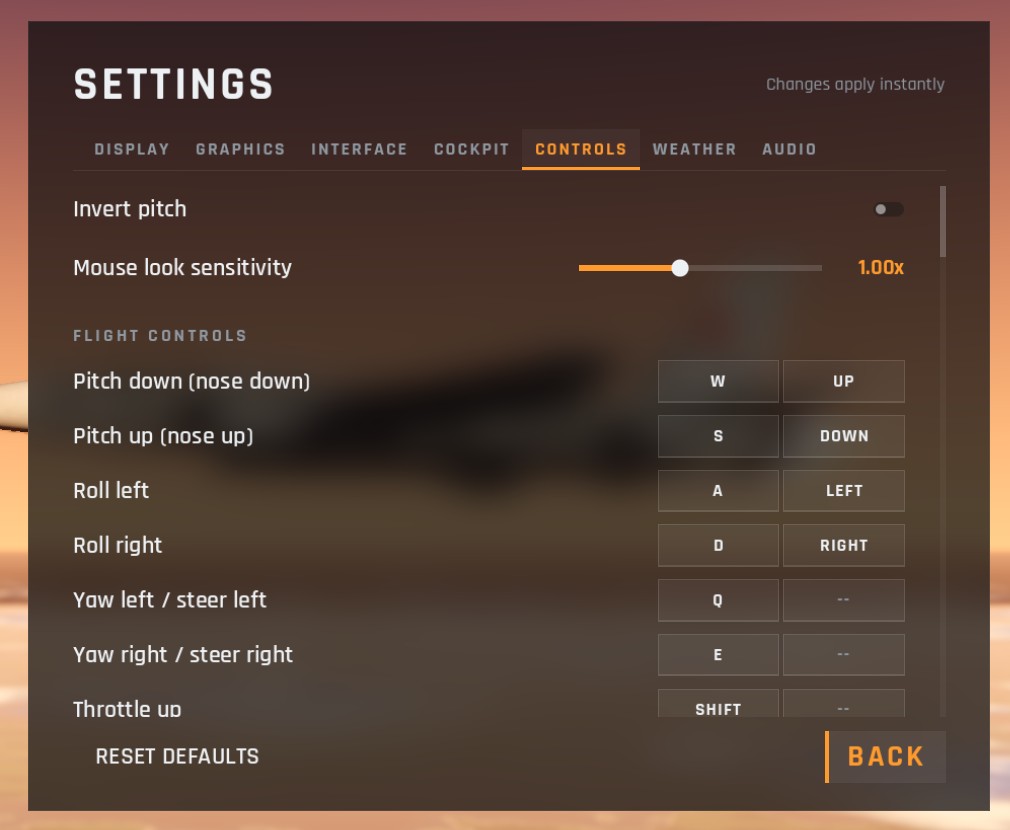
- Click a key slot. It shows PRESS A KEY.
- Press the key you want. It is saved at once.
- Esc cancels.
- Delete clears the slot (so Delete itself cannot be assigned from this screen).
- If the key was already used by another action, it moves to the new one, and a message tells you which action lost it.
Only the wheel brakes and the trigger may be given the same key (both Space by default): the brakes work on the ground, the trigger in the air. By default E also serves two actions, yaw right and eject (eject needs Ctrl held), so giving E to another action takes it from both.
Some controls cannot be changed:
| Control | Fixed to |
|---|---|
| Look around | Right mouse button, drag |
| Zoom | Mouse wheel |
| Reset the cockpit view | Middle mouse button |
| Pause menu | Esc |
| Eject | Hold Ctrl and press the eject key (E) three times. Only the E part can be changed |
RESET DEFAULTS at the bottom of Settings puts back all settings and all keys at once.
Keys are matched by their position on the keyboard, and shown with your keyboard layout's letters, so the layout works the same on QWERTY, AZERTY and others.
Mouse options
In Settings, CONTROLS:
| Option | Choices | Default | What it does |
|---|---|---|---|
| Invert pitch | On, off | Off | Swaps the pitch keys: W pulls the nose up and S pushes it down |
| Mouse look sensitivity | 0.30x to 2.00x | 1.00x | How fast the view turns when you drag with the right mouse button |
Checked against FlightOut 0.5.1.